
New Member
How exciting, a new team member has joined Team Spiral Racing. Wether they be a driver, staff, or admin follow the steps below to ensure they have a proper onboarding. For the basics, they should:
- Be provisioned a Team Spiral Racing email address.
- Setup email forwarding.
- Create an account for Team Spiral Racing Web.
Provisioning a TSR Email
In order to provision a TSR email you must have access to the Team Spiral Racing Square Space domain.
- Log into Square Space Domains for TSR.
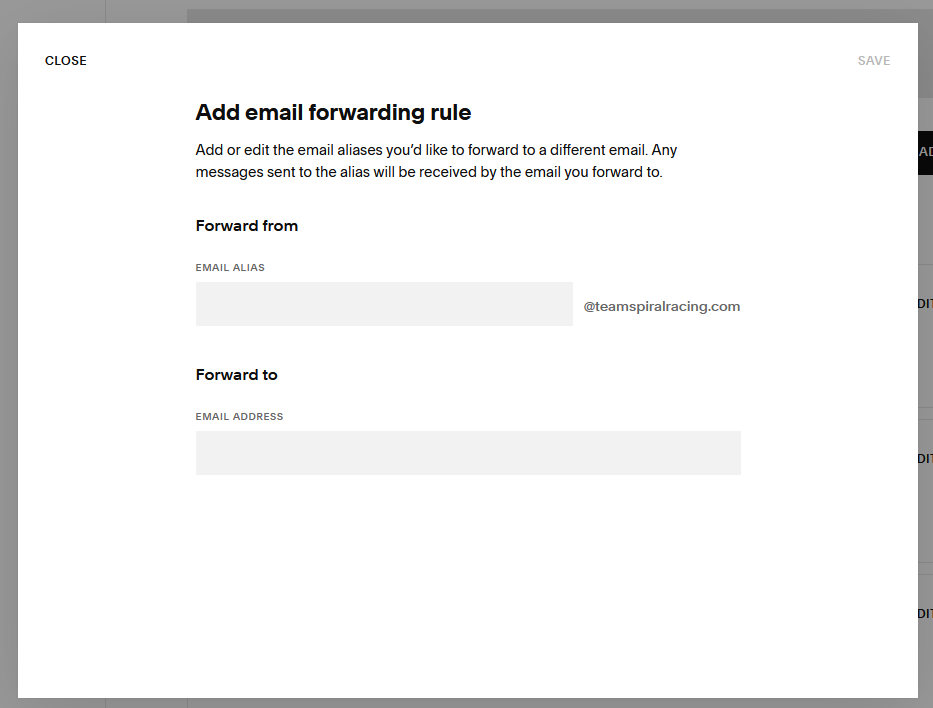
- Select "Email" on the right and select "Add Rule".
- It will prompt to resolve 2FA, do that then proceed to the next screen.
- On the top, add the new members email. Format is
<firstName>.<lastName>@teamspiralracing.com(ex.jonathan.lo@teamspiralracing.com). - On the bottom, add the member existing email address. It should be one that the member checks frequently.
Setup Email Forwarding
This is quite a complex topic and is different for each email provided. Below is how to do it for Gmail.
- Ask the member to enable 2FA on their Google account. Steps are here.
- Ask the member to navigate to their Google App Passwords. Under "App name", add in "Team Spiral MX - <MEMBER NAME>".
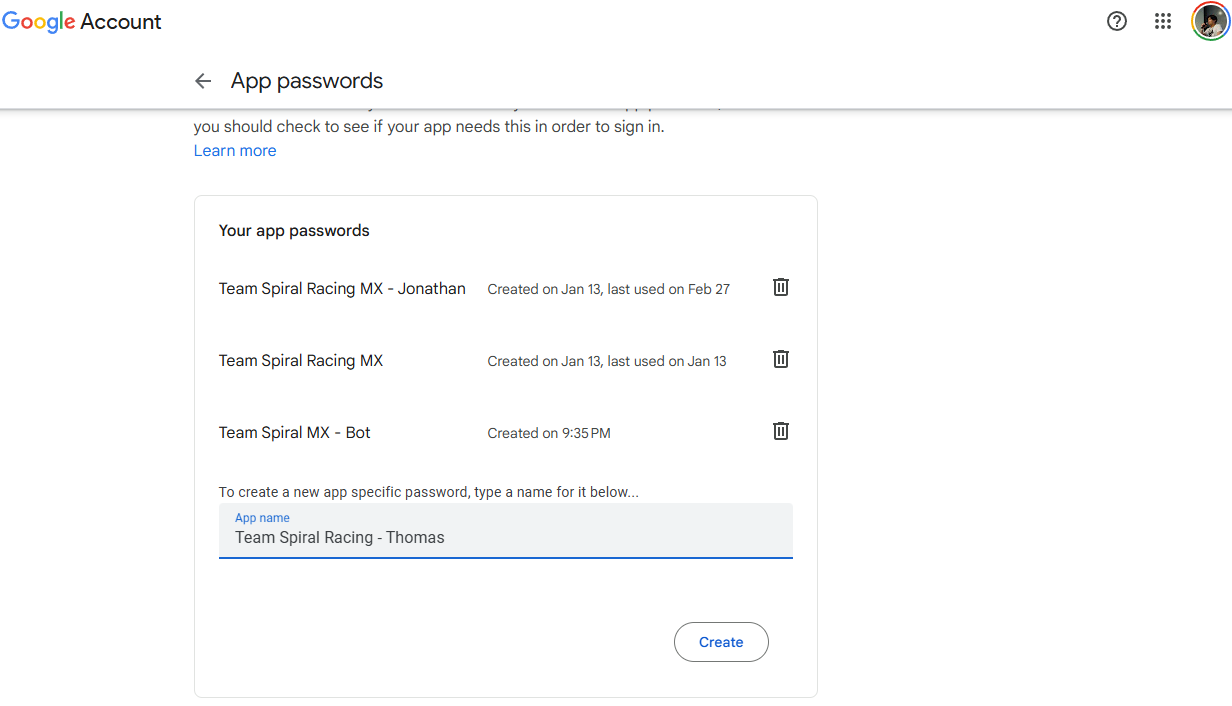
- Ask the member to hit create and they will get a password similar to "ydyq mgkx crgj ehqu". Save this somewhere handy.
- Ask the member to navigate to their Gmail. Go to Settings -> See all settings -> Accounts and Import. Under "Send mail as", select "Add another email address".
- Under name, add the name the member wants to call it. Popular choice is
<NAME> - TSR(ex.Jonathan Lo - TSR). Under email address, the member will input the Team Spiral Racing email address provisioned. Ensure "Treate as an alias" is checked.
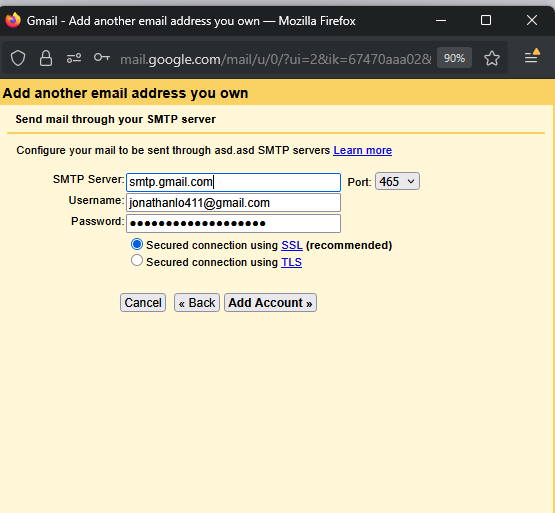
- Input the following details into the next screen:
- SMTP Server:
smtp.gmail.com - Port:
465 - Username:
jonathanlo411@gmail.com - Password: The 16 digit app password from before (looks like
ydyq mgkx crgj ehqu) - Connection: SSL
- SMTP Server:
- It should now have been added. To verify, select the verify next to the email. It will send an email to the inbox if done correctly. Open it and open the link inside to verify the email.
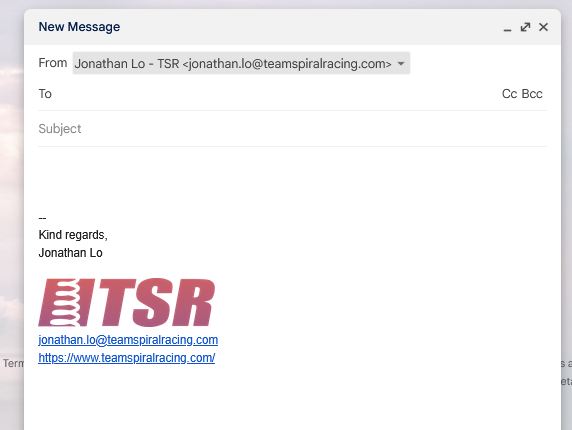
- All TSR members are required to have an email signature set up. Go to Settings -> General and scroll down to Signature. Use the following below as a template:
Kind regards,
Jonathan Lo
<TSR LOGO HERE>
jonathan.lo@teamspiralracing.com
https://www.teamspiralracing.com/- Select Create new. Also change the Signature defaults to the TSR email.
- Test it. Create a new email. In the "From" inout, it should be a drop down. Select it and select the TSR email. It should look like the following if done correctly:
Creating an Account for TSR Web
This one is quite simple.
- Ask the member to navigate to the signup page and create an account with their Team Spiral Racing email.
- Go into the MongoDB database and manually change their role to what they were onboarded on.